

Projects
A project in rlx is a folder you add on purpose. Add it once, give it a name you recognise, arrange the sidebar so the work you care about is on top, and start it fresh when you reuse it.
A project is a folder rlx keeps a board, memory, prompt history and a fleet for. It can be a git repository or a plain directory; a parent folder that holds several repositories is one project. Git worktrees of a project share its board and memory, which is how every coder's worktree sees the same tasks.
Nothing becomes a project on its own. A folder is a project only after you
add it. Anywhere else, a Claude Code session with rlx's hooks gets no
project, no prompt history and no board. A board write from there
(rlx note, task add, task next --claim, team signal) is refused
with the command that adds the project. The one thing counted everywhere is
token usage, for Usage & stats,
and it stays on your machine.
Add a project
The quickest way is from rlx:
- Welcome, on your first run, starts with picking a project.
+beside rlx's logo,r\x, at the top of the sidebar opens onboarding. Browse or type a directory (~and$VARexpand).rlxsets it up and runs the doctor in the background, and the project appears as a card.
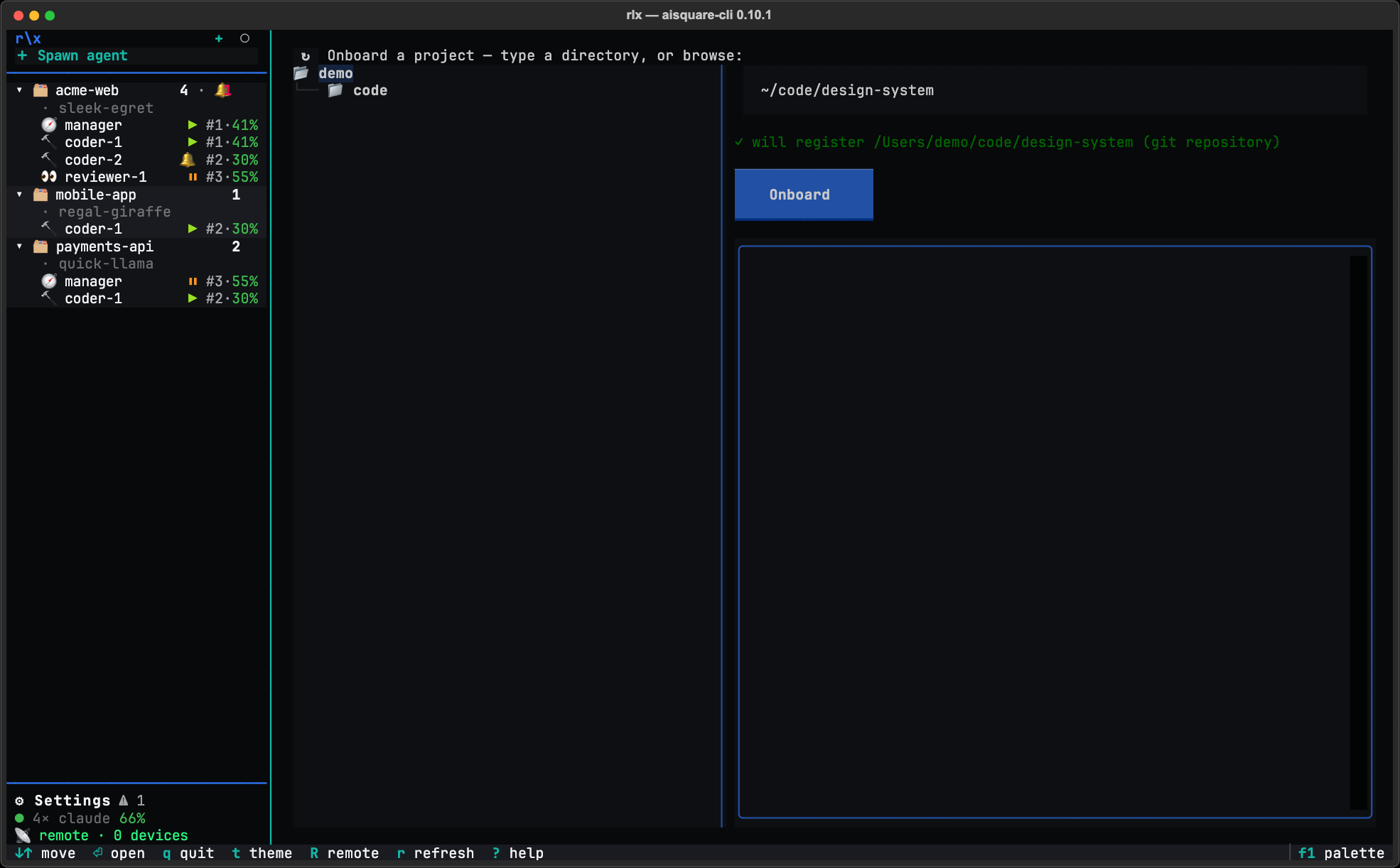
From a shell, any of these adds the folder:
rlx project onboard ~/work/api        # add it and seed its memory; --group puts it in a group
rlx init ~/work/api                   # first-time setup for a folder
rlx fleet spawn manager               # a fleet spawn adds the project it starts in
rlx team on                           # activate the board for this folder
project onboard seeds the project's memory with one fact per marker it finds
at the root: pyproject.toml, setup.py, package.json, Cargo.toml,
go.mod, Gemfile, pom.xml, a Makefile or a Dockerfile. It packs
nothing. A second run reads nothing and says so; --refresh reads the markers
again and adds only facts that are new. It also starts building the project's
symbol index in the background (rlx code, see
Memory), and never waits for it.
rlx project link ~/work/api-client links another repository into the
active project, and rlx project switch api makes a known project the
active one. A manager asked to add a project runs the same commands.
Give it a name
A card shows the project's nickname, or the folder name when it has none. When
two listed projects show the same name, each card adds its own folder as a dim
subtitle (~/work/api, ~/oss/api). App settings ▸ Display ▸
Always show project directory (ui.always_show_project_path) shows it on
every card.
A nickname is free text on one line, up to 255 characters, such as
API: auth rewrite 🚀. Name it for what you are doing there, like naming a
browser tab. Emoji are fine. A name with an invisible formatting character (a
bidi control, a zero-width space) is refused, because it would let one name
pass for another.
- On the card: double-click its title, or press
F2on it, and type. Enter or a click away saves, Esc cancels, and an empty name brings the folder name back. - On the project's Settings tab: type it and press Save.
- From a shell:
rlx project rename "API: auth rewrite", with--projectto name another project and--clearto drop the nickname.
The sidebar, rlx project list and rlx fleet ls all show it, and
--project accepts it when no id prefix, folder name or codename matches
first.
Every project in the fleet also has a codename, such as amber-otter. It
is stable for the same checkout on every machine, and it names the things that
need a token without spaces: the project's tmux session and the agents'
branches (fleet/amber-otter/…). Cards do not show it; the project's
Settings tab does. rlx fleet rename <codename> changes it.
The ⋯ menu
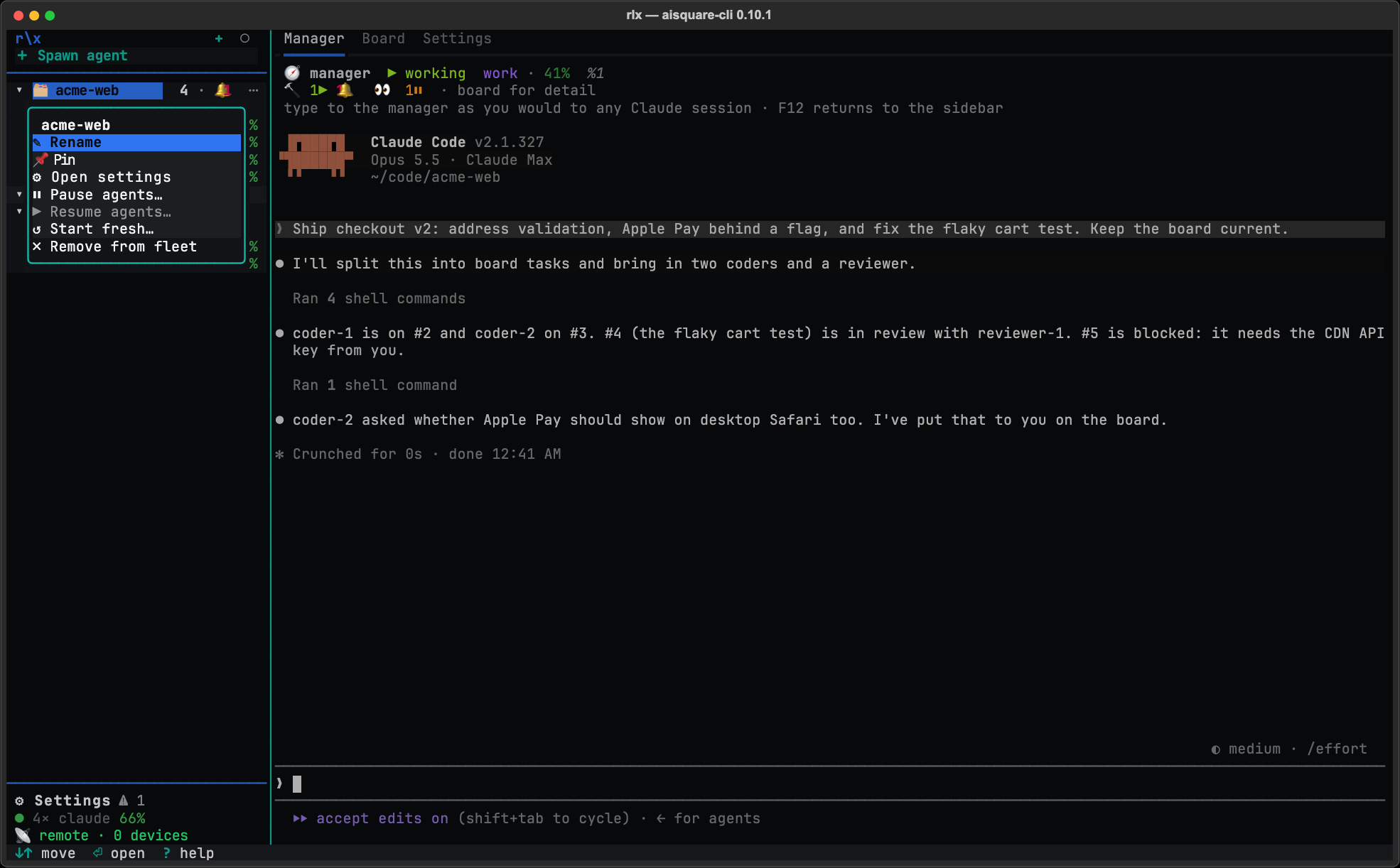
A card's ⋯ appears on hover and on the selected card. Press . or
right-click the card for the same menu:
| Item | What it does |
|---|---|
| ✎ Rename | Edit the nickname in place. |
| 📌 Pin / Unpin | Keep the project in the 📌 Pinned section at the top. |
| ⚙ Open settings | The project's Settings tab. |
| ⏸ Pause agents… | Exit the project's running agents and keep each one's claim, worktree and session. Lists them, all ticked, and asks first. |
| ▶ Resume agents… | Start exactly the agents a pause stopped, where they were. |
| ↺ Start fresh… | Clear the project's board and fleet and start a blank manager. Asks first. See Start a project fresh. |
| ✗ Remove from fleet | Take the project off your list. Click it twice: the first click says what leaves the fleet and what is kept. |
A project's tabs
Click a project card (not one of its agents) and its page opens with three tabs:
| Tab | What it holds |
|---|---|
| Manager | The manager's live session, where you type your goals, with a line under it counting the agents it runs by role and state. While the project has no manager, it offers Start manager. See Tour of rlx. |
| Board | The project's tasks, sessions and event feed, under a line that says what needs you. See The board. |
| Settings | The nickname, the codename with the branch prefix it names, ⏸ Pause agents… and ▶ Resume agents…, and ↺ Start fresh…. |
Everything machine-wide (roles, the fleet, how launches pick an account) is in ⚙ Settings ▸ App settings, not here, and your personas are in ⚙ Settings ▸ Personas (Personas).
Pin, group and order
The sidebar is a flat list until you arrange it.
- Pin with
por the menu. Pinned projects and groups sit in a 📌 Pinned section at the top, in the order you pinned them. - Group by dragging a card onto a group header, or press
gfor the group picker (an existing group, New group…, or Ungroup). A group header carries a roll-up of its members' agents, so a folded group still shows that something is running. - Reorder by dragging a card between cards, or with
shift+↑andshift+↓. Drag a group header to reorder groups. spacefolds a group,uundoes the last change, andmmarks cards soshift+gcan move several at once.
A group shares nothing: memory, prompts and boards stay per project, and deleting a group never deletes a project. The same layout from a shell:
rlx project group create frontend web docs   # a group with its first members
rlx project group add frontend cli
rlx project group remove cli
rlx project group rename frontend ui
rlx project group move tools --before ui
rlx project group delete ui                  # members go back to the top level
rlx project group list
rlx project pin api
rlx project unpin api
rlx project move docs --to top --position 0  # or --to <group> [--before P | --after P]
rlx project list --group ui                  # or --pinned
A parent manager over a group
A group can name a parent: an ordinary project outside the group, used as
the coordination home, whose manager hears what happens in the members. Chosen
events on a member's board (by default a question to the manager or the
parent, a blocked task, a result, and every status change of a task delegated
from the parent) land on the parent's board as one routed line each, with a
pointer back, and wake its manager. Boards stay per project.
rlx project group parent frontend frontend-hq               # name the parent; --clear removes it
rlx project group route frontend --kinds question,result     # what members route up; --off for nothing
rlx project group cap frontend 8                             # live agents across members and parent; 0: no cap
rlx task add "Ship the new nav" --project web --origin 4     # from the parent: delegate #4 to a member
A task delegated with --origin reports its status changes back to the
parent's board, and once every task delegated from an origin is done, the
parent hears it. The parent closes its own task.
Remove from fleet, or forget
Remove from fleet in the menu and rlx project forget <name|path> do
the same thing: they take the project off your list. They do not touch the
folder on disk, and its history stays in rlx's store, hidden. Add the
folder again with rlx project onboard <path> and its memory, prompts and
board come back. Forgetting also takes the project out of its group and off the
pin; added again, it comes back loose, at the end of the list.
Both are refused while the project has live agents, naming them: stop them
first (rlx fleet shutdown --project <name>), then remove the project.
A hub, a project whose board another project's fleet agents read, is also
refused while those agents exist, stopped ones included, because a restart
would start them under it again. Stopping them is not enough; the refusal names
them and what frees the hub, such as forgetting the project they belong to
first.
To delete the history too, use rlx project forget <name> --purge: it
removes the project's memory entries, prompt history, board rows, turn metrics
and its data directory under ~/.aisquare/projects/. A purged project also
stays out of Usage & stats: its
old Claude Code transcripts are not read back in, until you add the folder
again on purpose.
Neither forget nor prune moves the active-project pin that
rlx project switch sets. A pin that named the project that went is
cleared, and they say so; nothing else changes.
rlx project prune sweeps registrations you no longer need: folders that
are gone from disk (--missing), and worktrees of a repository that is itself
a project (--worktrees); both when you name neither. --captured-only drops
folders a session merely ran in, never added on purpose, that hold no memory
entry and were untouched for --older-than days (30 by default). It shows the
plan and asks first, and off a terminal it is a dry run unless you pass
--yes.
Upgrading from 0.8.0
Folders 0.8.0 captured on its own stay in the store, unlisted, until you
prune them: rlx project list --all marks them captured, and
rlx project prune --captured-only drops them.
Install has the other
upgrade notes.
Accounts and usage
Keep a fleet working through Claude usage limits. rlx starts each agent on an account with room, moves an agent that hits its limit (or, if you ask, one about to) to another account, and resumes it in the same session with its tasks.
The board
The board in rlx is the team's shared working memory. What needs you in one line, who is working, every task with a number and a status icon, and a feed of everything the team decided and did.