

Tour of rlx
A guided tour of rlx for daily use. Projects and agents in the sidebar, agent panes that are the real sessions, a project's tabs, the Settings hub and its status line, and the keys worth knowing.
rlx is one full-screen view over every project you have added, the manager
running in each, and the agents that manager starts. The sidebar on the left is
your navigator; the right side shows whatever you selected. This page walks
through what you will use every day in release 0.10.1.
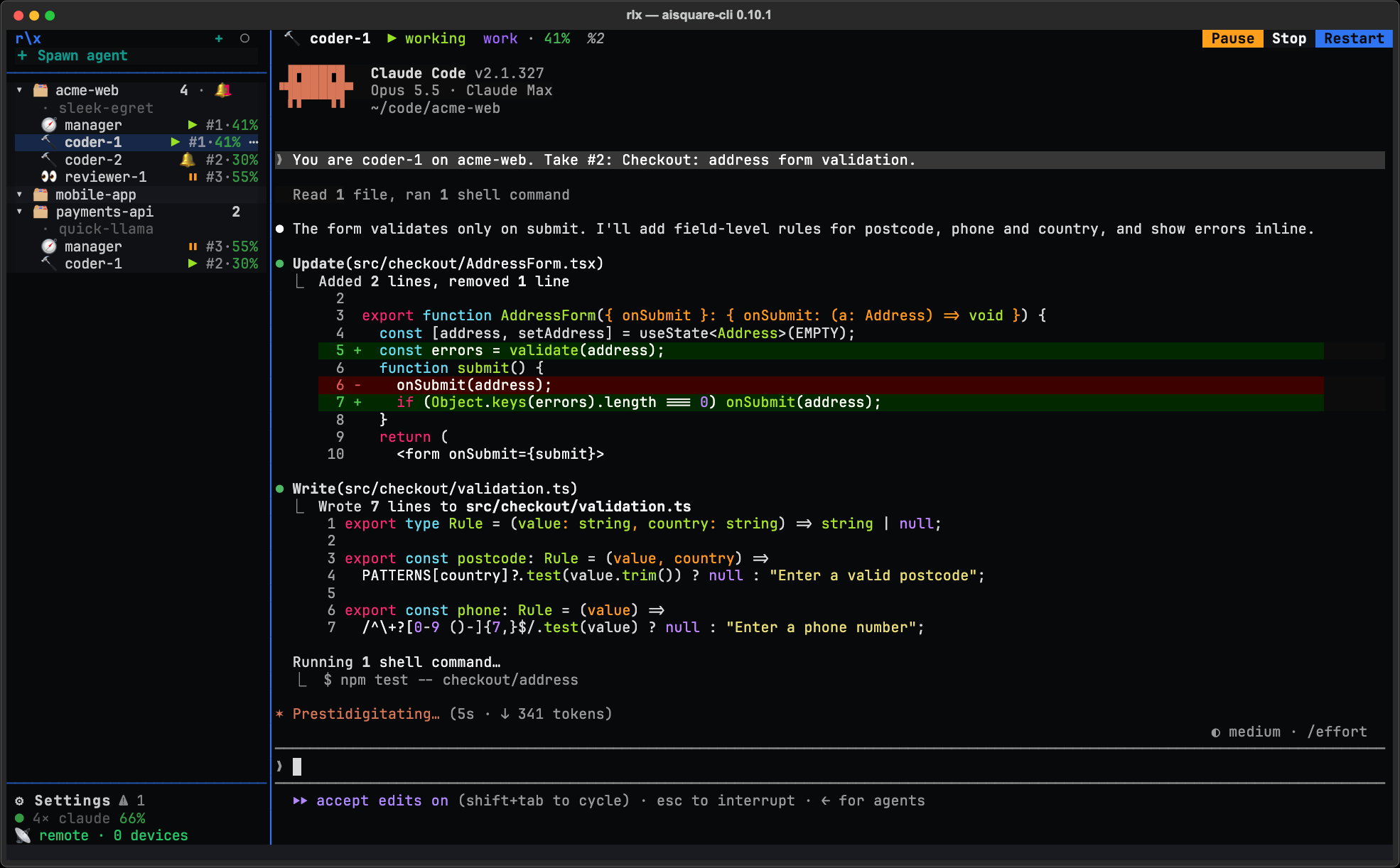
The sidebar
From top to bottom: rlx's logo, r\x, with the count of live agents and
+ beside it, one action, each project as a card with its agents indented
under it, then a line and ⚙ Settings with a status line beneath it.
+ Spawn agent sits right under the header and opens the Spawn dialog. Its first field, Project, starts on the card or agent you have selected, so one button starts an agent in any project. See Run a fleet.
+ beside the logo adds a project: browse or type a folder, and rlx
registers it and checks it in the background. See
Projects.
Agent rows
Each agent row reads like 🧭 manager ⏸ #1·42% · skeptic: a role icon, the
label, a state, the account it runs on with the share of that account's
five-hour window used, and the persona it runs as, if any.
| Role icon | Role |
|---|---|
| 🧭 | manager |
| 🔨 | coder |
| 🧪 | tester |
| 🌐 | ui-tester |
| 👀 | reviewer |
| 🛡 | validator |
| 🤖 | any other role, including a role you bound yourself and the role-less agent |
| State | Meaning |
|---|---|
| ▶ | working: mid-turn |
| ⏸ | waiting: at its prompt for the next message |
| 🔔 | needs you: a permission prompt or a question, with a terminal bell |
| ⏳ | limited: parked on a usage limit |
| ⏯ | paused: stopped by Pause, with its claim, worktree and session kept for Resume |
💤 exited(N) | its session ended, with its exit status; the window stays so its last screen is readable |
| ✗ | lost: its pane vanished; rlx fleet reap reconciles it |
The session figure is green under 70% used, yellow from 70%, and red from 90%.
A project card shows the project's name, how many of its agents are alive and
how many need you. Press F2 or double-click it to rename it in place, and
open its ⋯ menu (click ⋯, press ., or right-click the card) for
✎ Rename, 📌 Pin, ⚙ Open settings, ⏸ Pause agents…,
▶ Resume agents…, ↺ Start fresh… and ✗ Remove from fleet.
Arranging cards into groups and pins is on Projects.
Each agent row has a ⋯ menu too, on the row you point at or have selected
(. or a right-click opens it as well): Pause or Resume, Stop,
Restart and Rename. Rename is greyed, with why, where an agent keeps
its name, such as the manager.
The line between the sidebar and the content is a divider. Drag it to give an agent's pane more columns or the sidebar more room for long names; double-click puts it back.
Under ⚙ Settings
Three lines can sit under ⚙ Settings:
- The update row,
⬆ <version> · restart to update, while a newer release is out. See Updates. - The status line,
● 3× claude 58%, with a line of its own for Codex's accounts under it, such as● 1× codex 58%, once you have added one. Click it to open Accounts. 📡 remote · N devices, while Remote is on. Click it to open the Remote panel.
The status line packs your fleet's headroom into one line per coding agent. Your AISquare sign-in is not in the sidebar: it is on ⚙ Settings ▸ Accounts.
| Part | What it tells you |
|---|---|
● claude | The room left across your usable Claude accounts, as a colour: green over 50%, yellow 25 to 50%, orange-red 5 to 25%, red under 5%, 💀 none left, grey when usage could not be read. |
3× | How many Claude accounts are usable right now. |
58% | The fleet's share of its allowance left now, in the dot's colour. It is left out when the sidebar is too narrow for it. |
⚠ | At least one account needs a login. The dot is red when every enabled account needs one. |
See Accounts and usage for how the figure is worked out, and See where your usage goes for where the tokens went.
Beside ⚙ Settings, what the doctor's last run found shows as a count, such
as ✗ 1 ⚠ 2, and nothing when all is clear.
Agent panes are the real sessions
Click an agent and the right side becomes its real session, Claude Code's or Codex's, drawn exactly as the agent draws it in its own terminal. Its pane takes the keyboard at once: what you type goes straight to the agent. Nothing is relayed through a chat or summarised.
Above the pane, the agent's info line says who it is: its label and state, the account it runs on with that account's session use, its model and effort, its pane, and its persona. Pause, Stop and Restart sit beside it. A paused agent shows Resume in Pause's place, which brings it back where it was, and its view says it is paused and what the pause keeps.
Pause, Stop and Restart each ask first, in one small box that says what happens and offers Don't ask again: tick it, and that action acts on one click from then on, for every agent. Ask again before every action, under App settings ▸ User preferences ▸ Advanced, brings every box back. Resume never asks.
F12hands the keyboard back to the sidebar. It is the one key a pane never forwards (you can change it in App settings).- Scroll with the mouse wheel,
shift+PgUp/shift+PgDn(or with alt), andshift+Home/shift+End. - Copy by dragging over text: it is copied when you release.
Double-click selects a word. On a Mac,
ctrl+ccopies a pane's highlight again, and⌘Vpastes into the focused pane or field. - Paste or drop a file, such as a screenshot. A terminal hands a drop to
rlxas a paste, and a paste that no focused field takes goes to the one live agent pane on screen. With no pane open, a toast says to open an agent first; with two on screen, click the one you mean and paste again. Under WSL, a pasted Windows path to a file that exists becomes its Linux path.
Every agent runs inside a private tmux server that belongs to rlx alone, so
your own tmux sessions and settings are never touched. Close rlx and the
agents keep working; open it again and it re-attaches. rlx fleet attach
shows the same sessions in raw tmux from any terminal.
A project's tabs
Click a project (not one of its agents) and its page opens with three tabs.
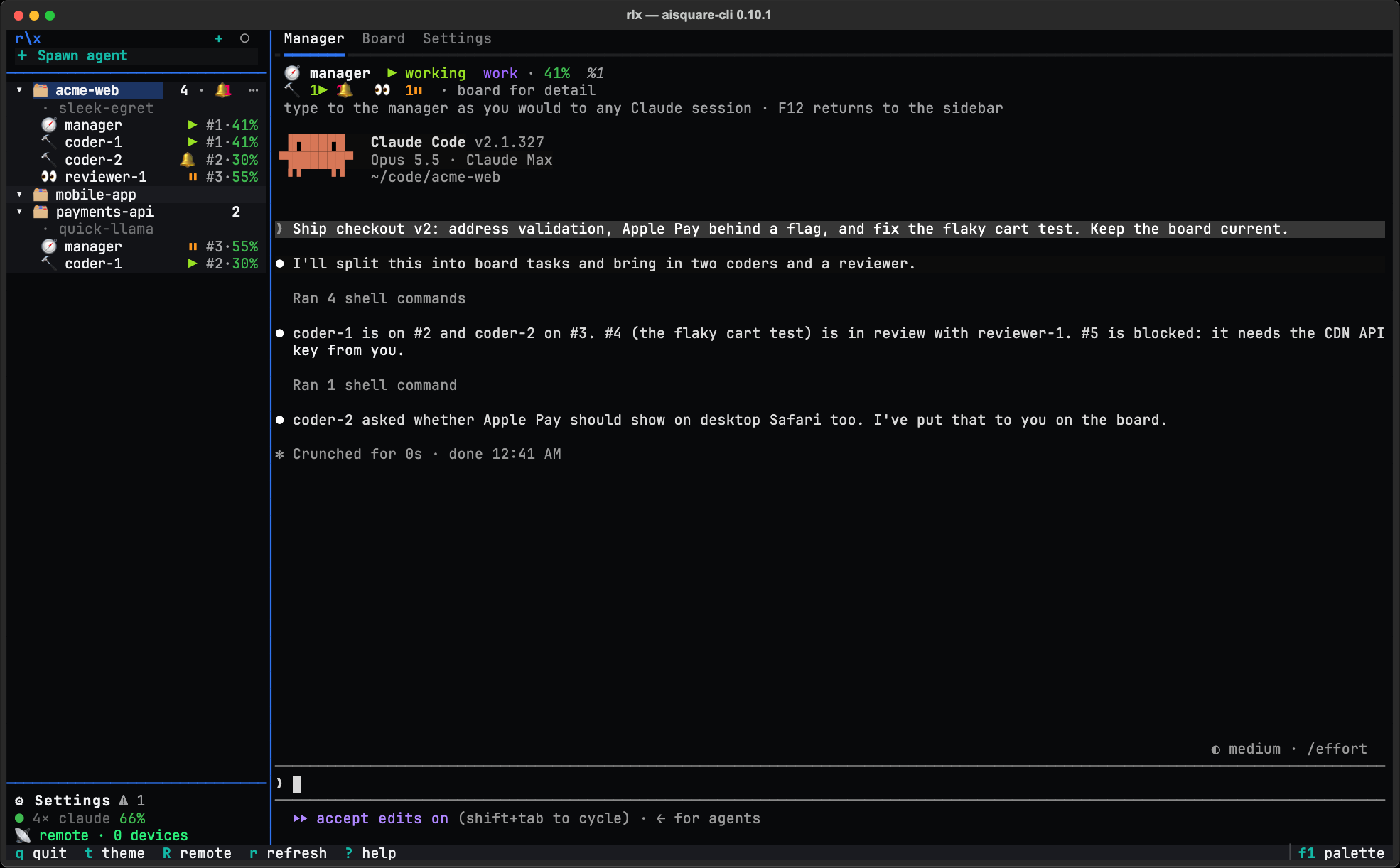
- Manager: the manager's live session, where you type your goals. Under
its info line, a strip counts the agents it runs by role and state, such as
🔨 2▶ 🧪 1⏸ 👀 1🔔 · board for detail; click it to open the Board tab. With only the manager running there is no strip. While the project has no manager, the tab offers Start manager. - Board: the project's numbered tasks, the feed, and a top line that counts what needs you. See The board.
- Settings: what belongs to this project. Its nickname, its fleet codename with the branch prefix it names, ⏸ Pause agents… and ▶ Resume agents…, and ↺ Start fresh… (Start a project fresh).
Personas are not a project tab: they live in ⚙ Settings ▸ Personas, the same for every project. See Personas.
⚙ Settings
⚙ Settings opens a hub of links, and a Fleet section under them.
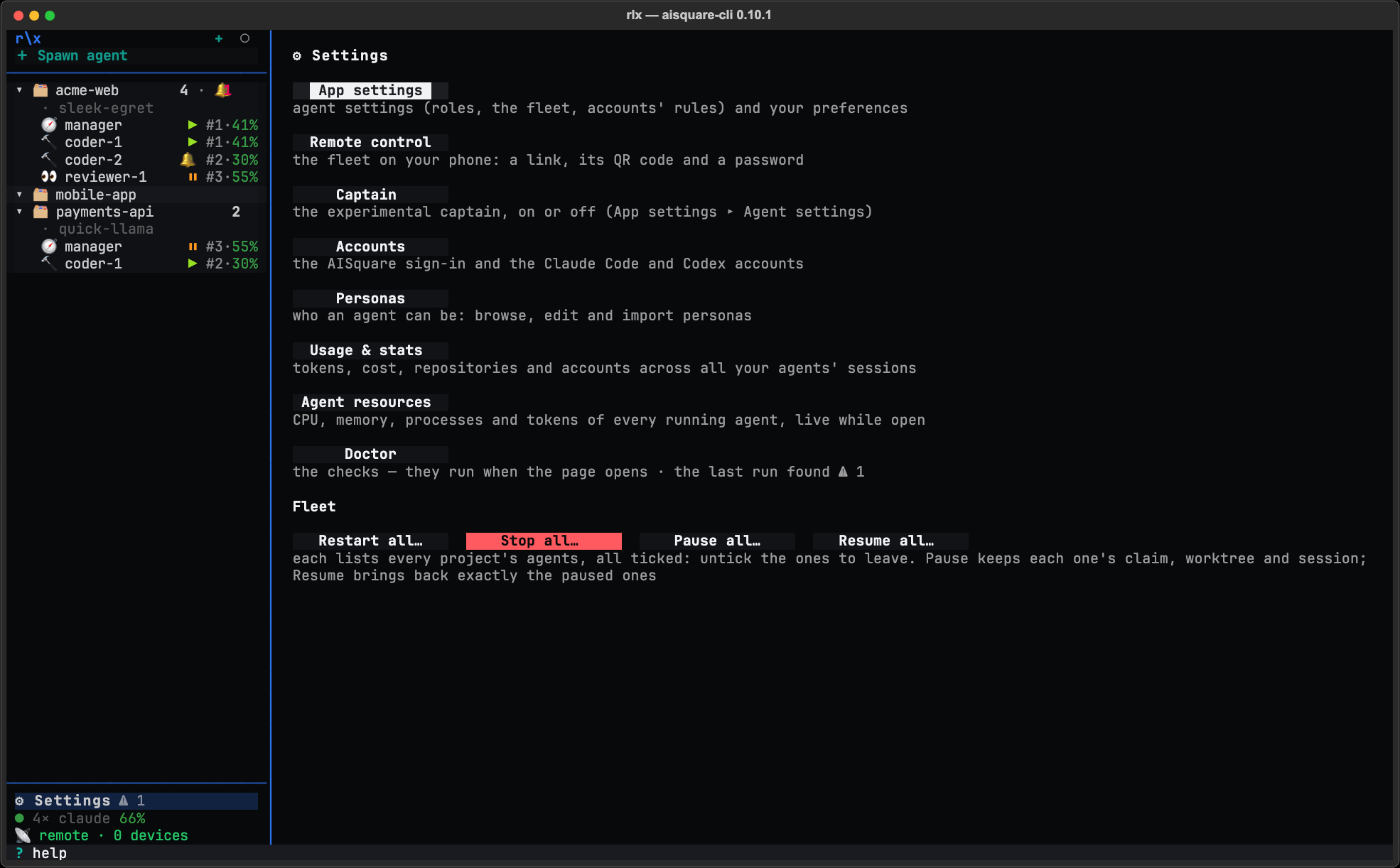
| Link | What it opens |
|---|---|
| App settings | The machine-wide settings, in four tabs (below). |
| Remote control | The fleet on your phone: App settings, on its Remote tab. See Your fleet on your phone. |
| Accounts | Your AISquare sign-in and your Claude Code and Codex accounts, with usage per window. See Accounts and usage. |
| Personas | Your personas and the bundled ones: browse, edit and import. See Personas. |
| Usage & stats | Tokens, cost, repositories and accounts across all your agents' sessions on this machine. See See where your usage goes. |
| Agent resources | CPU, memory, processes and tokens of every running agent, live while open. |
| Doctor | Every check, with the fix for anything that fails. |
Under Fleet, Restart all…, Stop all…, Pause all… and Resume all… act on the agents of every project. Each lists them all, ticked, with Select all at the top: untick the ones to leave, then confirm. Exited (💤) agents are left as they are, and Restart all… also brings back agents that died without being stopped. Pause all… exits each agent you picked and keeps its claim, worktree and session; Resume all… starts exactly those again. Pausing only some of a project's agents still lets its manager start new ones.
App settings
App settings has four tabs. Only the essentials show; the rest folds under Advanced.
- Agent settings: how launches pick an account and what a usage limit
does. Its Advanced holds your coding agent, each role's agent,
permission mode, worktree, persona and account, the fleet's escape key,
agent cap and worktree folder, the rest of the accounts' rules, and
Role bindings: every role
rlx team bindbound, with Edit, Unset key… and Clear. - User preferences: Check for a new release daily. Its Advanced lists the actions you told Don't ask again, with Ask again before every action.
- Display: on/off switches for the account usage next to agents, the agent marks in a mixed fleet, the live count in the sidebar's title, the fade of the side without the keyboard, the bell when an agent needs you, the board following its live feed, and Always show project directory. Each applies as you tick it.
- Remote: turn Remote on or off, paste your ngrok token when one is needed, and see the link, QR code and passphrase while it is on.
Save, Reload and Reset all settings to default sit under the tabs
and act on the first two; on Display and Remote, every control acts at
once. Save writes only the fields you changed on the page to
~/.aisquare/config.toml. A flag
on one spawn beats this file, which beats the built-in default. Model and
effort are not set here: see Models and effort.
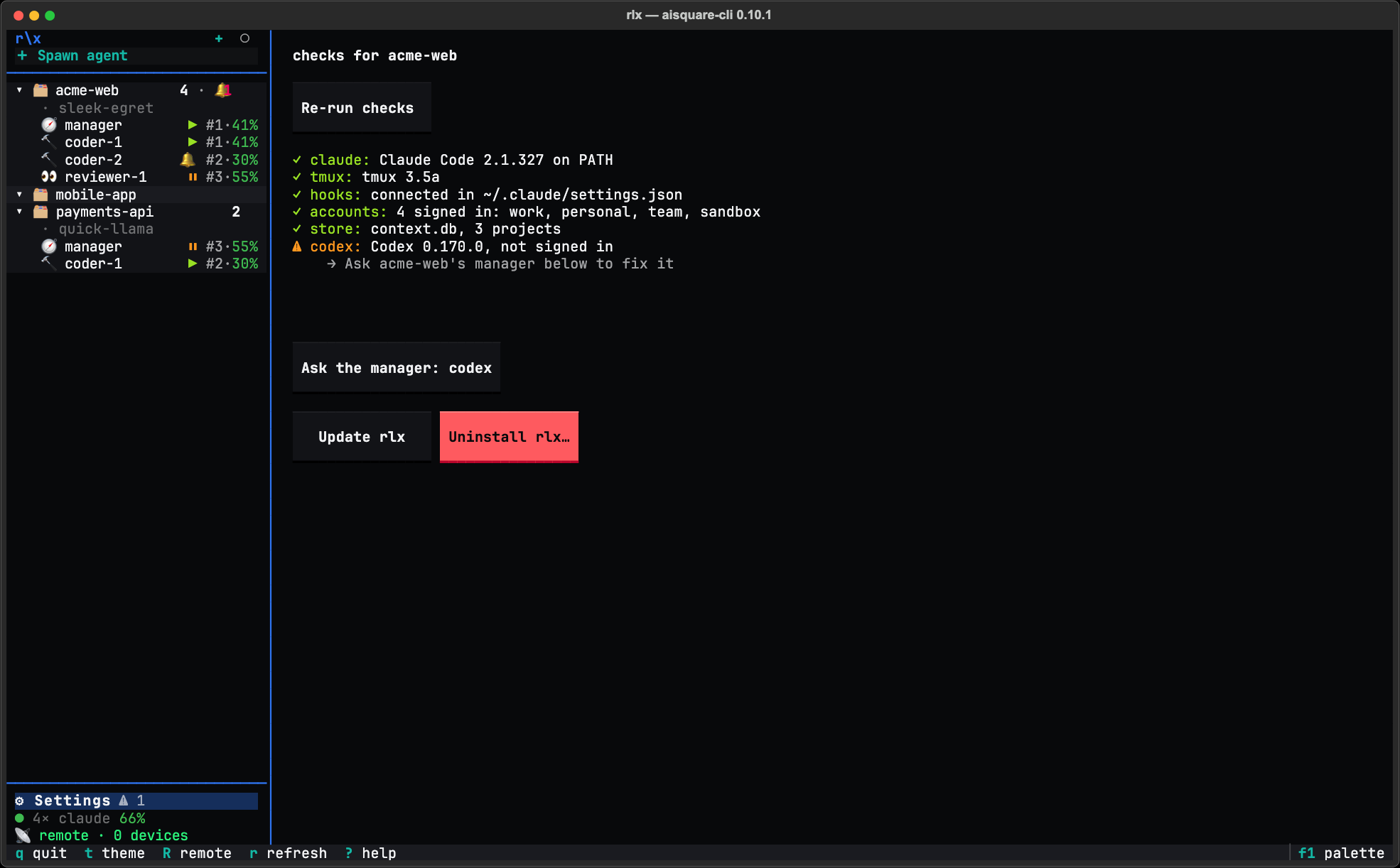
Doctor
Doctor runs once when rlx starts and again each time you open its page, so
moving around the UI stays quick. On the page, a fix that is one of rlx's
own commands is one click, a check that needs the command line offers
Ask the manager, Re-run checks asks again, and Update rlx
and Uninstall rlx… hand the terminal to rlx upgrade and
rlx uninstall, which show their plan and ask first.
Updates
At most once a day, rlx asks PyPI whether a newer release is out. When one
is, ⬆ <version> · restart to update appears under ⚙ Settings. Click it
and a dialog counts your live agents; Restart & update closes rlx, runs
rlx upgrade, and reopens rlx on the new version in the view you had
open. The agents live on the fleet's own tmux server, so the update does not
stop them. An install rlx does not update itself, such as Homebrew or pip,
reads · how to update instead, and the dialog says to update it the way you
installed it. Turn the check off with Check for a new release daily in
User preferences, or rlx config set updates.check false.
Remote: R
Press R in the sidebar, or click 📡 remote · N devices, to open the Remote
panel, which puts the fleet on your phone: switch Remote on or off, get the
link and a QR code, make a new link, see the passphrase and the devices that
have connected, allow writes, and set an auto-off timer. See
Your fleet on your phone and
Control the fleet remotely.
Keys
Press ? from anywhere except an agent's pane for the full list, including
the board's keys and the status line's legend. The ones worth knowing:
| Key | Where | What it does |
|---|---|---|
| click | anywhere | Select a project, an agent or ⚙ Settings. |
↑ ↓ Enter | sidebar | Move over the sidebar and open the row under the cursor. |
F12 | agent pane | Hand the keyboard back to the sidebar. |
x | sidebar | Stop the selected agent (asks first, unless you ticked Don't ask again). |
w | sidebar | Back to the Welcome page. |
+ | sidebar | Add a project. |
F2 or double-click | sidebar | Rename the card in place. |
. or right-click | sidebar | The selected row's menu. A card's: rename, pin, settings, pause and resume its agents, start fresh, remove. An agent's: pause or resume, stop, restart, rename. |
shift+↑ shift+↓ | sidebar | Move the card one place. |
p g space | sidebar | Pin, group, fold the card. |
m, then shift+g | sidebar | Mark cards, then group the marked ones (Esc clears the marks). |
u | sidebar | Undo the last arrangement. |
> < = | sidebar | Widen, narrow, or reset the divider. |
t | sidebar | Pick a theme (applied live, saved). |
R | sidebar | The Remote panel. |
r | sidebar | Refresh now. |
a | sidebar | Show or hide captured folders; only while projects.capture is on. |
F1 | sidebar | Command palette. |
? | outside a pane | This list. |
q | sidebar | Quit rlx. The agents keep running. |
Everything is also a command
Every action in rlx has a plain command behind it, and every command takes
--json, so you can script the fleet or check on it over SSH:
rlx fleet ls                         # this project's agents and their live state
rlx fleet attach                     # the same sessions in raw tmux, full fidelity
rlx doctor                           # is everything wired, and how to fix what is not
rlx --json fleet ls                  # what the UI and any automation read
rlx ui --group web                   # rlx, listing only one group's projects
Run a fleet
The roles, spawning and steering agents, and every default you can change.
Accounts and usage
Several accounts, one pool: headroom picks and automatic switching.
The board
Numbered tasks, status icons and what needs you.
Your fleet on your phone
What needs you, every agent's screen, and the board, on your phone.
Quickstart
Install rlx and go from nothing to a manager and two coders working on a goal you gave them in plain words, in about five minutes.
Run a fleet
Tell one rlx manager what you want in plain words. It writes the tasks, staffs them with coders, testers and reviewers in their own worktrees, and tells you when the work is ready for you to merge.